Dec 232011
 

I though this would be trivial; turns out it’s not.

  • When you copy a formula from the clipboard, relative references are adjusted, so Range(x).Formula=Range(y).Formula doesn’t produce the expected results.
    The correct way is Range(x).Formula=Range(y).FormulaR1C1. Easy once you’ve been there.
  • Copying border formats with Range(x).Borders=Range(y).Borders crashes Excel. You have to copy each individual border, left, right, top, etc.
  • Similarly for fonts, you have to copy the font attributes one by one.
  • Good practice: check that the areas have compatible sizes and don’t overlap.

Nothing inordinately difficult, but time-consuming to get right. Here’s the code:

Option Explicit

' Copy cells without using the clipboard.
'
' Source is a range from which to copy values/formulas/formats.
' Dest is the destination range. Must be either
'     a single cell, the top-left of the target range. The source size (rows x columns) is copied.
'   or
'     a range exactly the same size as source. We throw an error if the shapes don't match.
'
' If 'what' is omitted, copies the values.
' what=CopyFormulas copies the formulas instead of the values.
' what=CopyFormats copies the formats.
' what=CopyFormulas+CopyFormats copies both.
'
' Examples:
'   CopyCells Range("b2:c6"), Range("h10")                                   ' Copies 8 cells (6x2) from B2 to H10
'   CopyCells Range(cells(2,2),cells(6,3)), Range("h10")                     ' Idem
'   CopyCells Range(cells(2,2),cells(6,3)), Range(cells(10,10),cells(14,12)) ' Fails, source is 6x2, dest is 6x3
'   CopyCells Range("b2:c6"), Range("b3")                                    ' Fails, source and dest intersect

Public Const CopyFormulas = 1
Public Const CopyFormats = 2
Public Sub CopyCells(source As Range, dest As Range, Optional what As Long)

    ' Turn off screen updating, wastes (a lot of) time
    Dim updating As Boolean
    updating = Application.ScreenUpdating
    Application.ScreenUpdating = False

    If IsMissing(what) Then
        what = 0
    End If

    Dim r As Long
    Dim c As Long

    ' If destination is not a singe (r,c) top-left cell, ensure that the ranges are the same shape and size
    If dest.Rows.Count > 1 Or dest.Columns.Count > 1 Then

        If dest.Rows.Count <> source.Rows.Count Or _
           dest.Columns.Count <> source.Columns.Count Then

            Err.Raise 1000, "CopyCells", "Destination area " & dest.Rows.Count & "x" & dest.Columns.Count & _
                " is not the same shape as the source area " & source.Rows.Count & "x" & source.Columns.Count

        End If
    End If

    If Not (Intersect(source, dest) Is Nothing) Then
            Err.Raise 1000, "CopyCells", "Source area " & Replace(source.Address, "$", "") & " " & source.Rows.Count & "x" & source.Columns.Count & _
                " intersects destination area " & Replace(dest.Address, "$", "") & " " & dest.Rows.Count & "x" & dest.Columns.Count
    End If

    For r = 1 To source.Rows.Count

        For c = 1 To source.Columns.Count

            If what And CopyFormulas Then
                dest.Cells(r, c).Formula = source.Cells(r, c).FormulaR1C1
            Else
                dest.Cells(r, c).Value = source.Cells(r, c).Value
            End If

            If what And CopyFormats Then

                Dim b As Long
                For b = xlEdgeLeft To xlInsideHorizontal
                    With source.Cells(r, c).Borders(b)
                        dest.Cells(r, c).Borders(b).Weight = .Weight ' You must do this *before* linestyle
                        dest.Cells(r, c).Borders(b).LineStyle = .LineStyle
                        dest.Cells(r, c).Borders(b).ColorIndex = .ColorIndex
                        dest.Cells(r, c).Borders(b).TintAndShade = .TintAndShade
                    End With
                Next
                dest.Cells(r, c).ColumnWidth = source.Cells(r, c).ColumnWidth
                dest.Cells(r, c).Interior.Color = source.Cells(r, c).Interior.Color
                dest.Cells(r, c).Interior.Pattern = source.Cells(r, c).Interior.Pattern
                dest.Cells(r, c).HorizontalAlignment = source.Cells(r, c).HorizontalAlignment
                dest.Cells(r, c).IndentLevel = source.Cells(r, c).IndentLevel
                dest.Cells(r, c).NumberFormat = source.Cells(r, c).NumberFormat
                dest.Cells(r, c).Orientation = source.Cells(r, c).Orientation
                dest.Cells(r, c).RowHeight = source.Cells(r, c).RowHeight
                dest.Cells(r, c).UseStandardHeight = source.Cells(r, c).UseStandardHeight
                dest.Cells(r, c).UseStandardWidth = source.Cells(r, c).UseStandardWidth
                dest.Cells(r, c).VerticalAlignment = source.Cells(r, c).VerticalAlignment
                dest.Cells(r, c).WrapText = source.Cells(r, c).WrapText

                With source.Cells(r, c).Font
                    dest.Cells(r, c).Font.Background = .Background
                    dest.Cells(r, c).Font.Bold = .Bold
                    dest.Cells(r, c).Font.Color = .Color
                    dest.Cells(r, c).Font.ColorIndex = .ColorIndex
                    dest.Cells(r, c).Font.FontStyle = .FontStyle
                    dest.Cells(r, c).Font.Italic = .Italic
                    dest.Cells(r, c).Font.Shadow = .Shadow
                    dest.Cells(r, c).Font.Size = .Size
                    dest.Cells(r, c).Font.Strikethrough = .Strikethrough
                    dest.Cells(r, c).Font.Subscript = .Subscript
                    dest.Cells(r, c).Font.Superscript = .Superscript
                    dest.Cells(r, c).Font.Underline = .Underline
                End With
                On Error GoTo 0
            End If

        Next
    Next

    Application.ScreenUpdating = updating

End Sub

Sub test()
    CopyCells Range("b2:c6"), Range("h10"), CopyFormulas + CopyFormats
End Sub
 

May 102011
 

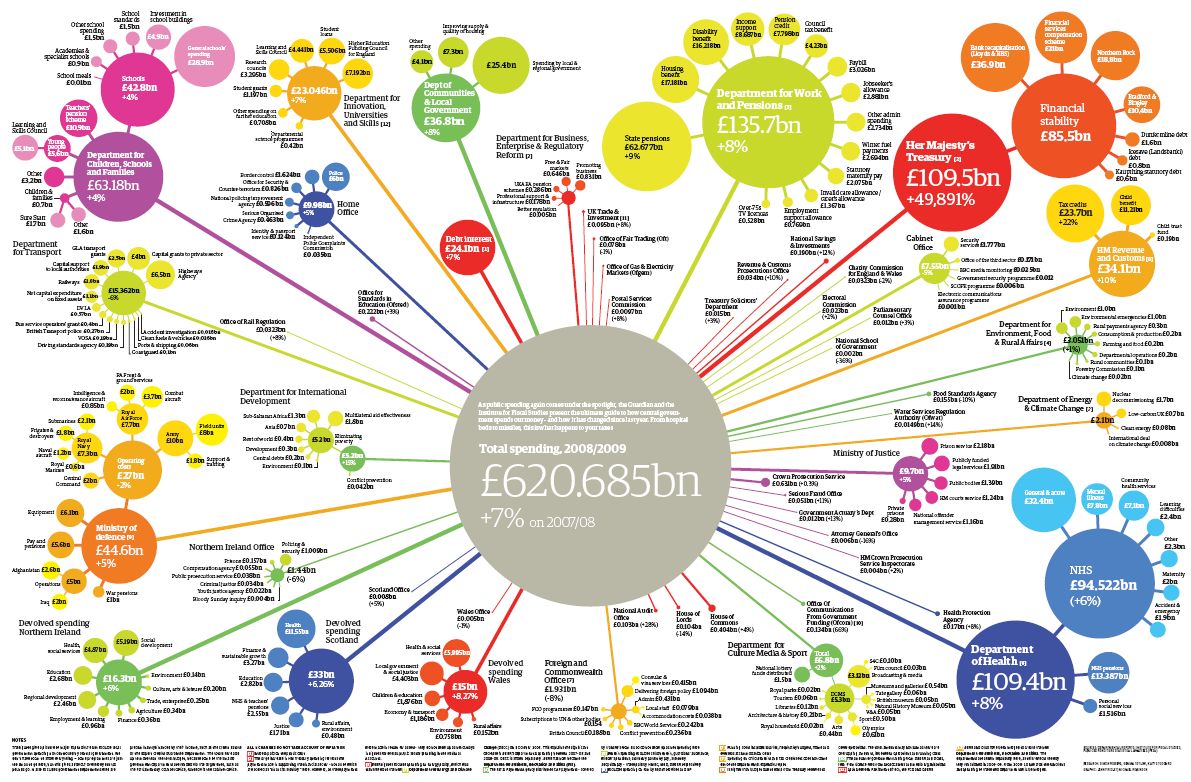
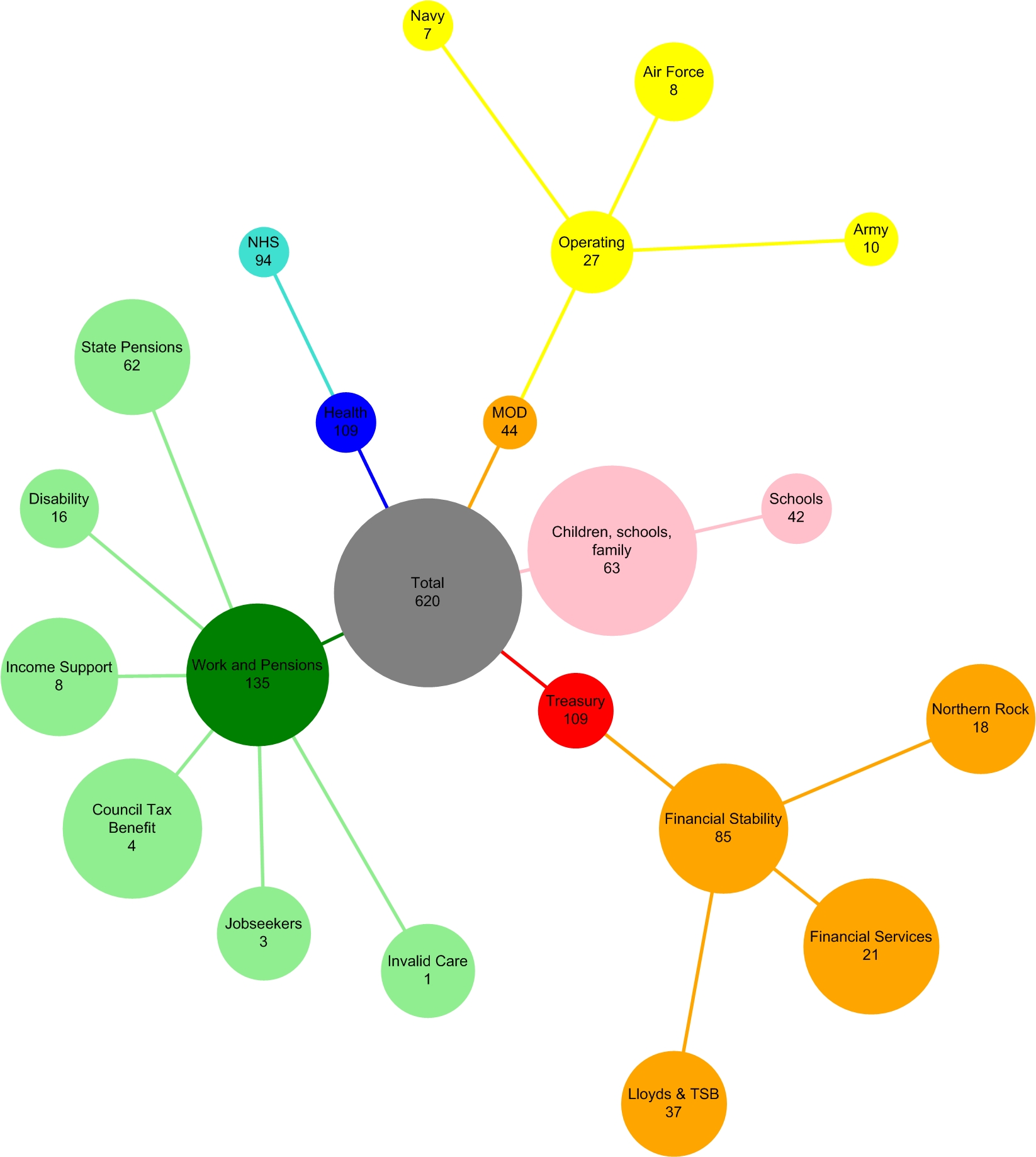
Pavel in St. Petersburg asked me if it would be possible to produce bubble diagrams like this in Excel:

UK Public Spending

Excel has had bubble diagrams sine 2003 but they are just an X-Y plot with variable-sized nodes. What Pavel was after is an automatic layout, with lines joining the nodes, along these lines:

Bubble diagram with Graphviz

Not perfect, but you get the idea, and it’s produced automatically. To do this, you’ll need Excel, Visio, Graphvizio and this zip file which contains the sample XLS, GV, VSD and JPG files.

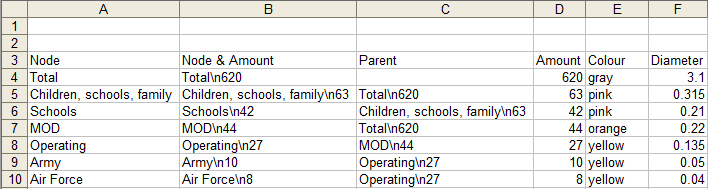
  • Open the XLS. Column A is the node’s title, B is the title and the amount separated by a newline. Columns C, D and E specify the node’s parent, colour and amount. Column F computes the diameter of the node, in inches, from the amount:

Column G just creates Graphviz DOT statements from the values. G1 and G2 are the prelude. Copying column G into a text file called bubble1.gv, we get:

graph  RootGraph {
node [fontname=Arial, fontsize=12, style=filled];

"Total\n620" [width="3.1", height="3.1", color="gray", fillcolor="gray", shape=circle];

"Children, schools, family\n63"--"Total\n620" [color="pink"]; "Children, schools, family\n63" [width="0.315", height="0.315", color="pink", fillcolor="pink", shape=circle];

"Schools\n42"--"Children, schools, family\n63" [color="pink"]; "Schools\n42" [width="0.21", height="0.21", color="pink", fillcolor="pink", shape=circle];

...snip...

}

  • Fire up Visio. Graph>Diagram->Import Graphviz
  • To get the circular layout, Graph->Settings->Diagram->Concentric
  • Graph->Layout
  • A little tweaking of the font sizes and line thickness and you’re on your way

Enjoy!

Mar 192011
 

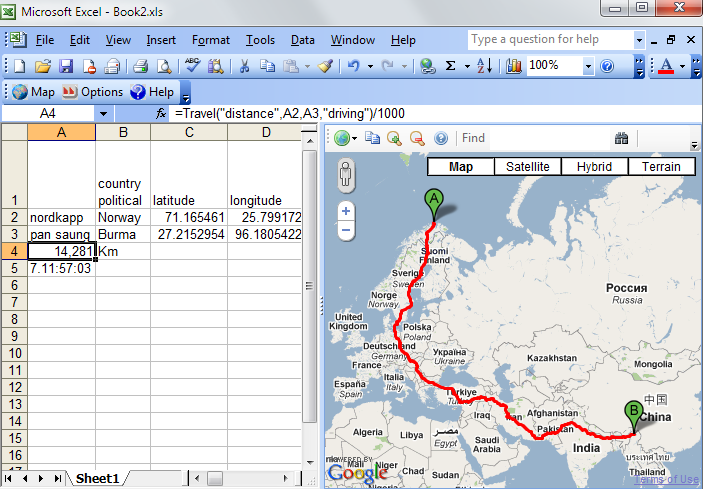
You have to hand it to Google’s engineers, even the best GPS will have a hard job beating this: driving directions from Nordkapp in Norway to Pan Saung in Myanmar (Burma). 14’281 kilometres will take just over a week of continuous driving:

How did I do this in Excel? GeodesiX

 Posted by at 12:28 am  Tagged with:
Jan 082011
 

For those who envisage building an Excel RTD server, I have written a tutorial and open-sourced the code on SourceForge.

The following topics are covered:

  • How RTD servers work
  • Architecture
  • Excel, Multithreading and callbacks
  • Providing easy-to-read function names
  • Talking to the GoogleMaps APIs
  • Avoiding Application Domain misery
  • Embedding a GoogleMap page in an Excel Task Pane
  • Creating the Setup project
  • Changing the Excel RTD Throttle Interval
  • Utility functions
  • Building help from the source with Sandcastle

I hope that you will find it useful.

Oct 202010
 

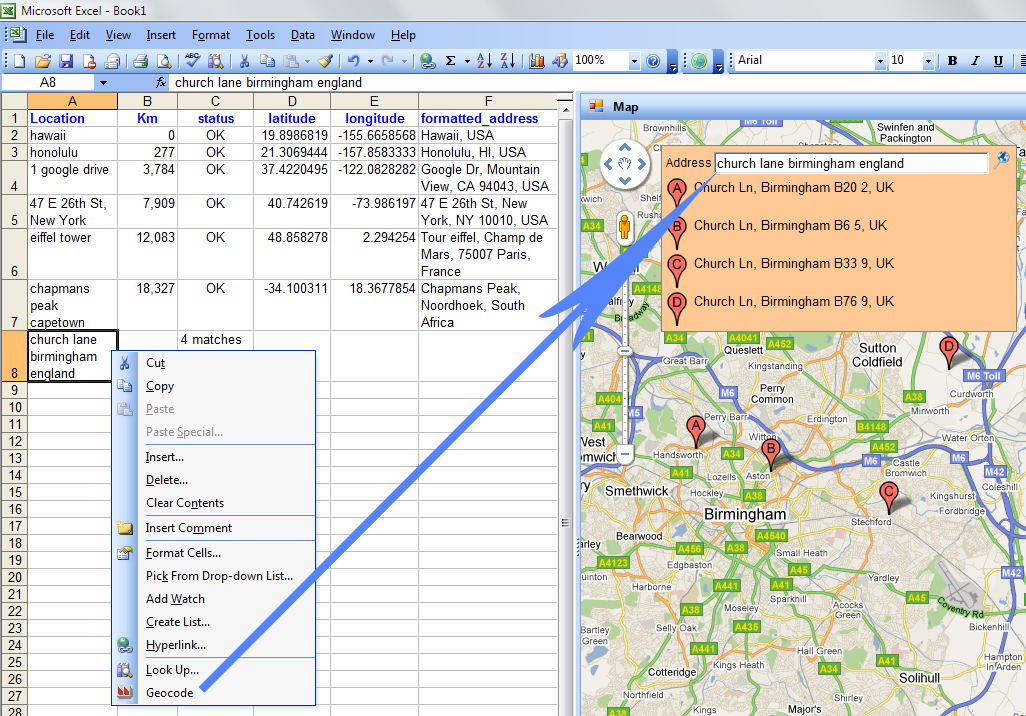
Addin for Microsoft Excel which allows you to perform forward and reverse geocoding, both by address and latitude / longitude, calculate Great Circle Distances using Vincenty’s algorithm, calculate travel distances and durations and verify the results with a Google Maps Task Pane, all inside your comfortable Excel interface.

This is useful for creating GoogleMap applications to find places from a list, like this.

Implements three Excel formulas:

=Geocode(request, location)

Request is the field to return:

  • status The status of the geocode request (Fetching, OK, N matches, etc.)
  • latitude The latitude of ‘location’
  • longitude The longitude of ‘location’
  • and so on: formatted_address, country political,administrative_area_level_1 political, administrative_area_level_2 political, administrative_area_level_3 political, locality political, sublocality political, route, street_number, postal_code, types, location_type, partial_match, point_of_interest, establishment, viewpointne, viewpointsw, airport establishment transit_station, bus_station transit_station, establishment, natural_feature, neighborhood political, postal_town, premise, street_address, subpremise

Location is the name or address of a place or point of interest

=GreatCircleDistance(latitude1, longitude1, latitude2, longitude2)

Calculates the Great Circle Distance using Vincenty’s Formula, with fallback to the Haversine formula when Vincenty’s method doesn’t converge.

=Travel(request, origin, destination, mode)

Calculates the distance or duration to get from origin to destination, according to Google Directions.

Request is the field to return:

  • distance The distance in metres from origin to destination
  • duration The estimated duration from origin to destination

Origin and destination are the names or addresses of the start and finish.

Mode is the mode of transport to use: Driving, Bicycling or Walking

Free download here

Enjoy!

Screenshot, click to enlarge:

May 112010
 

In the process of analysing a client’s existing database, I used Visio’s reverse-engineering tool. It works well, but the resulting diagram was an incomprehensible bowl of spaghetti. Visio does have a “Layout shapes” command, which appears to work by moving shapes with repulsive forces and the result is, not surprisingly, repulsive.

What I wanted was a tool which would unravel the spaghetti, so that I could get a grasp of the relationships, edit and revise them and layout again in an iterative process.
Searching for a solution, I found three layout programs, none of which have a Visio interface:

  1. Microsoft Automatic Graph Layout (MSAGL), formerly known as GLEE The first version, GLEE, is free whereas MSAGL costs between 99 USD and 279 USD depending on where you buy it.
  2. Tom Sawyer Layout is also a graph layout library, the price isn’t disclosed on their website.
  3. Graphviz from AT&T research labs, reputed to have the most sophisticated layout algorithms, is free.

Given that the best quality was to be found in the free library, I made the obvious choice.
It took me over a year and some 11’000 lines of VB to get Visio and Graphviz to co-exist; marrying a Unix-style command-line program with a WYSIWYG interface, both with quirks to numerous to mention, was far more challenging than I initially thought.
The result, unimaginatively called GraphVizio, is available here, I hope you’ll find it useful.

25 May 2011 Version 1.1.5 released. Improvements:

Full support for 64-bit Windows and Visio

No longer makes a Visio document ‘dirty’ when opening

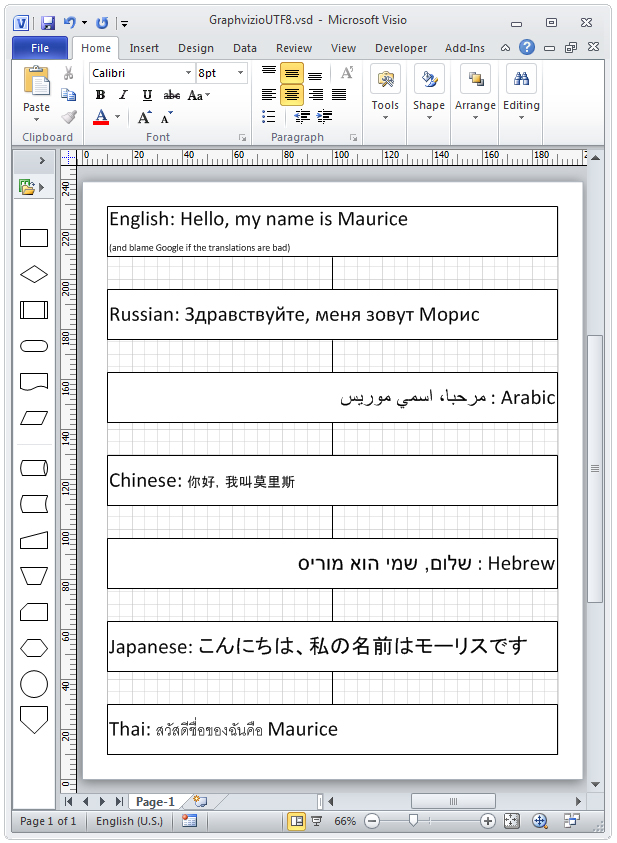
Full support for UTF8. This DOT file:

graph  RootGraph {
  node [width="7.08661417322834", height="0.787401574803148", color="#000000", fillcolor="#FFFFFF", fontname=Calibri, fontsize=24, style=filled, shape=box];
  edge [color="#000000", fillcolor="#FFFFFF"];

  "English: Hello, my name is Maurice\n(and blame Google if the translations are bad)" [pos="283.704566929134,620.932913385827", label="English: Hello, my name is Maurice\n(and blame Google if the translations are bad)"];
  "Russian: Здравствуйте, меня зовут Морис" [pos="283.704566929134,526.932913385827", label="Russian: Здравствуйте, меня зовут Морис"];
  "مرحبا، اسمي موريس : Arabic" [pos="283.704566929134,432.932913385827", label="مرحبا، اسمي موريس : Arabic"];
  "Chinese: 你好,我叫莫里斯" [pos="283.704566929134,338.932913385827", label="Chinese: 你好,我叫莫里斯"];
  "שלום, שמי הוא מוריס : Hebrew" [pos="283.704566929134,244.932913385827", label="שלום, שמי הוא מוריס : Hebrew"];
  "Japanese: こんにちは、私の名前はモーリスです" [pos="283.704566929134,150.932913385826", label="Japanese: こんにちは、私の名前はモーリスです"];
  "Thai: สวัสดีชื่อของฉันคือ Maurice" [pos="283.704566929134,56.9329133858268", label="Thai: สวัสดีชื่อของฉันคือ Maurice"];

  "English: Hello, my name is Maurice\n(and blame Google if the translations are bad)"--"Russian: Здравствуйте, меня зовут Морис";
  "Russian: Здравствуйте, меня зовут Морис"--"مرحبا، اسمي موريس : Arabic";
  "مرحبا، اسمي موريس : Arabic"--"Chinese: 你好,我叫莫里斯";
  "Chinese: 你好,我叫莫里斯"--"שלום, שמי הוא מוריס : Hebrew";
  "שלום, שמי הוא מוריס : Hebrew"--"Japanese: こんにちは、私の名前はモーリスです";
  "Japanese: こんにちは、私の名前はモーリスです"--"Thai: สวัสดีชื่อของฉันคือ Maurice";
}

produces this Visio diagram:

Graphvizio UTF8

Aug 272009
 

Problem: You’re using Visual Studio to write a Browser Helper Object for Internet
Explorer and you want to add some images to the web page being displayed.

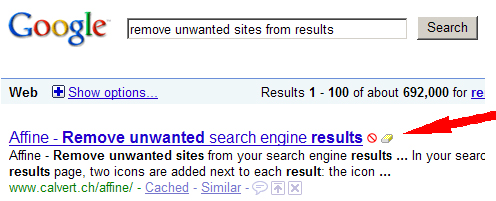
Here is an example, taken from my Affine addin. The two images I insert are shown by the arrow:

Affine in action

Finding out how to do this is trickier than expected, so here’s the recipe:

  1. Import the images into the project and create a .RC file which identifies them:

    affinehide.bmp bitmap "affinehide.bmp"
    affinefade.bmp bitmap "affinefade.bmp"

    I called this file images.rc in the images directory in my project.

  2. You’ll need RC.EXE, the resource compiler, which is in the Windows SDK. The
    2008 version for .NET 3.5 is here
  3. In your setup project’s, set the prebuild event to

    "D:Affinerc.exe" /r "d:affineimagesimages.rc"

    I copied RC.exe into my project directory because I sometimes work on a 64-bit box, where Program Files becomes Program Files (X86). Adjust the paths to suit your installation.

  4. Open your project’s .VBPROJ file and insert the three red lines shown:

    <?xml version=”1.0″ encoding="utf-8"?>
    <Project DefaultTargets="Build"
    xmlns="http://schemas.microsoft.com/developer/msbuild/2003"
    ToolsVersion="3.5">
    <PropertyGroup>
    <Win32Resource>imagesimages.res</Win32Resource>
    </PropertyGroup>

    <PropertyGroup>
    <Configuration Condition=" '$(Configuration)' == '' ">Debug</Configuration>

    Thanks to Wouter van Vugt for this!

  5. The HTML to insert the images is straightforward:

    <img src="res://affine.dll/#2/affinehide.bmp"

    where #2 means that the embedded object is an image
    Assuming this string is stored in the variable "buttonhtml" then the code to insert the button on the page is

    a.insertAdjacentHTML(&#34afterEnd&#34, buttonhtml)

  6. Now for the events. You need an event handler for the DHTML event itself:

    Imports mshtml
    Public Delegate Sub DHTMLEvent(ByVal e As IHTMLEventObj)
    _
    Public Class DHTMLEventHandler
    Public Handler As DHTMLEvent
    Private Document As mshtml.IHTMLDocument
    Public Sub New(ByVal doc As mshtml.IHTMLDocument)
    Me.Document = doc
    End Sub
    _
    Public Sub [Call]()
    Handler(CType(Document.parentWindow.event, mshtml.IHTMLEventObj))
    End Sub
    End Class

    Thanks to Rick Strahl

  7. A handler which the above will call, to actually deal with the event:

    Imports mshtml
    Module BrowserEventHandler_
    Public Sub BrowserEventHandler(ByVal e As mshtml.IHTMLEventObj)
    Try
    If e.type = "click"” AndAlso e.srcElement.tagName = "IMG" Then

  8. and finally tghe code to add in in your DocumentComplete event:

    Dim Handler As DHTMLEventHandler = New DHTMLEventHandler(doc)
    Handler.Handler = AddressOf BrowserEventHandler
    doc.onclick = Handler

Happy coding!

Jul 012009
 

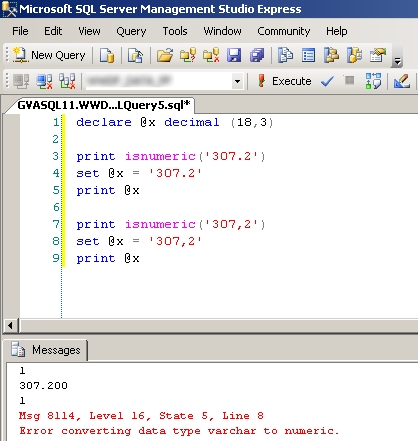
From an early age I have practised defensive programming. On a recent project, I was loading data entered on an intranet site to an SQL Server table. Wary, I used SQL’s ISNUMERIC function to validate the numbers users had entered. It worked fine for a few weeks, until somone entered a comma as a decimal separator. It turns out that ISNUMERIC accepts this, whereas casting doesn’t. Here’s the proof:

isnumeric

Doubtless, MS will try and wriggle out by saying that it depends on how your international settings are made. My contention is that if ISNUMERIC says it is then you should be able to CAST it to a number.

Period. 

(sorry for the weak pun)

 Posted by at 11:56 am  Tagged with:
Feb 242009
 

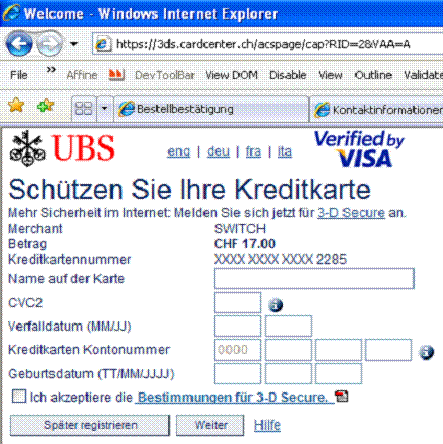
I elected to pay my dues to SWITCH.CH by credit card and got redirected to this:

ubs3dsecure

Now I have a credit card from UBS, I’m paying SWITCH and I end up at CARCENTER.CH on what looks like a teenage-hacker effort?

Believe it or not, this is indeed UBS’s implementation of 3D-Secure, which as you can read in that Wikipedia article, seems to be less than perfect. Amusingly, returning to the same URL I get this:

ubs21

which pretty well says it all. With all the other snafus the bank has been accumulating, one wonders how long it can go on…

Feb 182009
 

A recurrent problem occurs when you’ve spent hours/days/months rigging and skinning a biped and discover that your initial scale or size was wrong, either because you need to merge the biped into an existing scene with a different scale or you need to change your system units. I spent an inordinate amount of time trying to resolve this and found this solution:

In this example, I’m converting a model that’s 130 centimetres high with system units in inches to 130 centimetres in system units in centimetres – in other words making the model 2.54 times bigger, but it should work for any other type of scaling.

Input A scene X containing a skinned, weighted mesh on a biped. The biped is called BIP, the mesh is called BODY with a skin modifier.

Desired output A scene Y containing the same biped, with the mesh, bones and weights correctly scaled to a different size and/or units.

Prepare to convert

  1. Open X. Select the biped. Motion->Biped->Figure mode. Save File button to create BIP.FIG
  2. Select BODY. Select Skin modifier->Envelope. Open Advanced Parameters. Click save and create BIP.ENV
  3. Select BODY. Delete all modifiers (symmetry, skin etc). Save the scene as X1.MAX

You now have X1.MAX which contains the base mesh without modifiers, a FIG file with the biped definition and an ENV file with the envelope weights.

Create the new scene

  1. Reset
  2. If you need to change the system units for the new scene : Customise->Units Setup->System Units and change them
  3. File->Merge X1.MAX and select BODY. If you’re prompted, choose convert units (and not “adapt to file’s scale”). Check that your scene now contains only the mesh with no modifiers.
  4. Use Tools->Measure distance in front view to confirm that the mesh is indeed 130 cm high – not the 51 cm that you might have expected when changing from inches to centimetres
  5. Create->Systems->Biped. Drag in the front viewport to create a tiny biped next to your mesh (make it knee-high to your mesh)
  6. Select the COM of the tiny BIP01 you just created. Motion->Figure mode. Click load file and select the BIP.FIG you created above. The biped should centre to your mesh but it’ll be 2.54 times smaller, standing between your biped’s ankles. Check in top view.
  7. With BIP01 still selected, open motion->Structure and note the BIP’s height (just under ankle attach). Multiply this value by 2.54 and replace the height with this new value. This seems to be the trick to scaling a biped correctly. BIP01 should now match the size of the mesh closely. Make BIP01 see-through (object properties) and orbit in perspective to check that the bones and mesh are correctly aligned.
  8. If your mesh was only one half, select BODY and add symmetry (and any other pre-skin modifiers).
  9. Add a Skin modifier onto BODY.
  10. Select BODY->Skin->Envelope. Open Advanced and load BIP.ENV.
  11. Save scene as Y.

You should now have a new mesh and biped, correctly scaled. You’ll need to check and maybe fix by hand:

  • Vertex weights. Select each bone and look carefully for misplaced red vertices. Similarly, exercise the bones (not in figure mode) to isolate vertices that should be red but no longer are. The most efficient way to do this is to move the bone and select skin->envelope to adjust the buggered vertices by opening the toolbox and copy/pasting the weight of an adjacent vertex.
  • Polygons. Depending on the scaling you migh see some narrow holes in the mesh, visible as pairs of parallel edges which have “moved apart”. Fix by welding with a low threshold.
  • Bones. I have experienced an unexpectedly shortened neck making the head a little low; go into figure mode and scale as needed, this doesn’t usually mess up the vertex weights.
  • Saved postures and poses. Don’t seem to translate so well for me, often making the biped look like a fatal trauma case. I found it quicker to redo them from scratch.

Good luck!

 Posted by at 9:24 pm  Tagged with: